Method 1: Add Lets Manage as a Channel Manager (Recommended)
This is the safest and most professional way.
Step 1: Go to YouTube Studio
-
Open YouTube
-
Click your profile picture (top right)
- Switch to your business profile before going to YouTube Studio
-
Select YouTube Studio
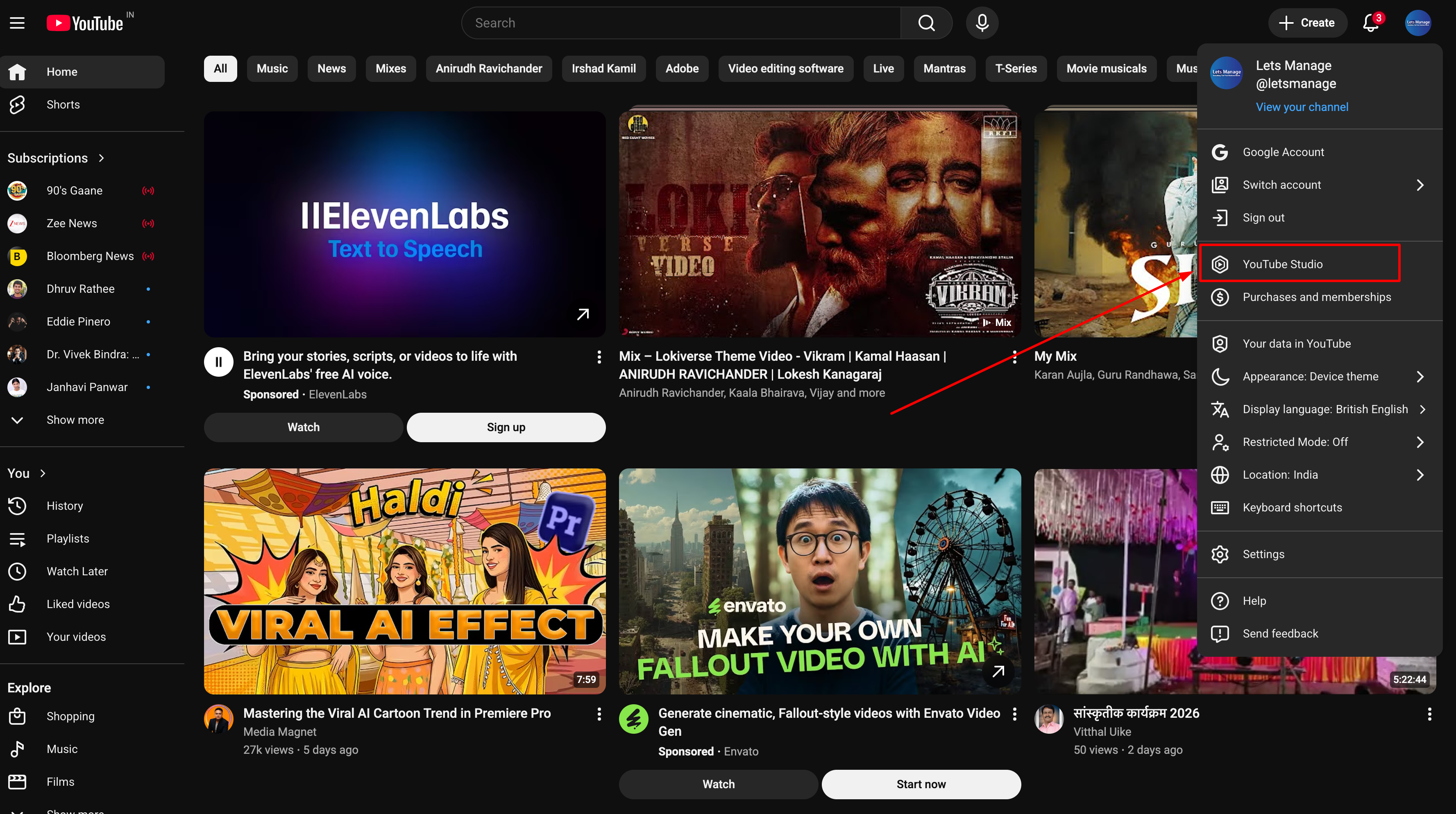
Step 2: Open Permissions
-
In the left menu, click Settings
-
Click Permissions
-
Click Invite
Step 3: Enter Email ID
-
Type / Copy paste this email id: letsmanage.co@gmail.com
-
Choose role as Owner (Recommended) or you can also share Manager Access
-
Click Done
-
Click Save
They will receive an email invitation. Once they accept, they will get access.
Available Roles Explained
Owner
Full control including deleting the channel and managing permissions.
Manager
Can upload videos, edit videos, reply to comments, view analytics. Cannot delete the channel or remove the primary owner.
Editor
Can edit videos and manage content but cannot access revenue details.
Editor Limited
Can edit content but cannot view revenue or advanced analytics.
Viewer
Can only view analytics.
Viewer Limited
Limited analytics access.
⚠ Important Notes
- Carefully add email as mentioned above
-
You can remove access anytime from the Permissions section
-
Inform your RM to accept the invitation received on email
Alternative Method (Brand Account Only)
If your channel is linked to a Brand Account:
-
Go to YouTube
-
Click profile picture
-
Click Settings
-
Click Manage permissions
-
Add or remove managers from there